
How to Write Emails With ChatGPT and Check Them

To write emails with ChatGPT, give it five things: who you're writing to and how you know them, what you need, the tone you want, any limits on length or deadlines, and your rough notes. Before sending, check the draft for four common problems: made-up facts, wrong names, promises you didn't approve, and wording you'd never use. ChatGPT can write a fluent email quickly. It doesn't know your schedule, company policies, or relationship with the reader.
An email draft takes seconds to generate, which makes it tempting to copy it straight into your inbox. But wordy greetings and vague corporate language can bury your request. Missing context is harder to spot: the model may fill a gap with an assumption that sounds reasonable but isn't true. Give it the details up front, then read the result before sending it under your name.
Why drafting emails with ChatGPT requires a two-stage process
ChatGPT is useful when you have rough notes and can't find the wording. It can organize those notes, suggest another way to phrase a request, or adjust the vocabulary for your reader. Checking whether the result is accurate is a separate job.
Research from the Nielsen Norman Group on email newsletters in congested inboxes found that participants often scanned newsletters and skipped introductory filler. A workplace email has a different purpose, but the practical lesson still helps: put your request where the reader can find it. Unless you ask for a concise draft, ChatGPT may open with pleasantries such as "I hope this email finds you well" or "I am writing to kindly inquire."
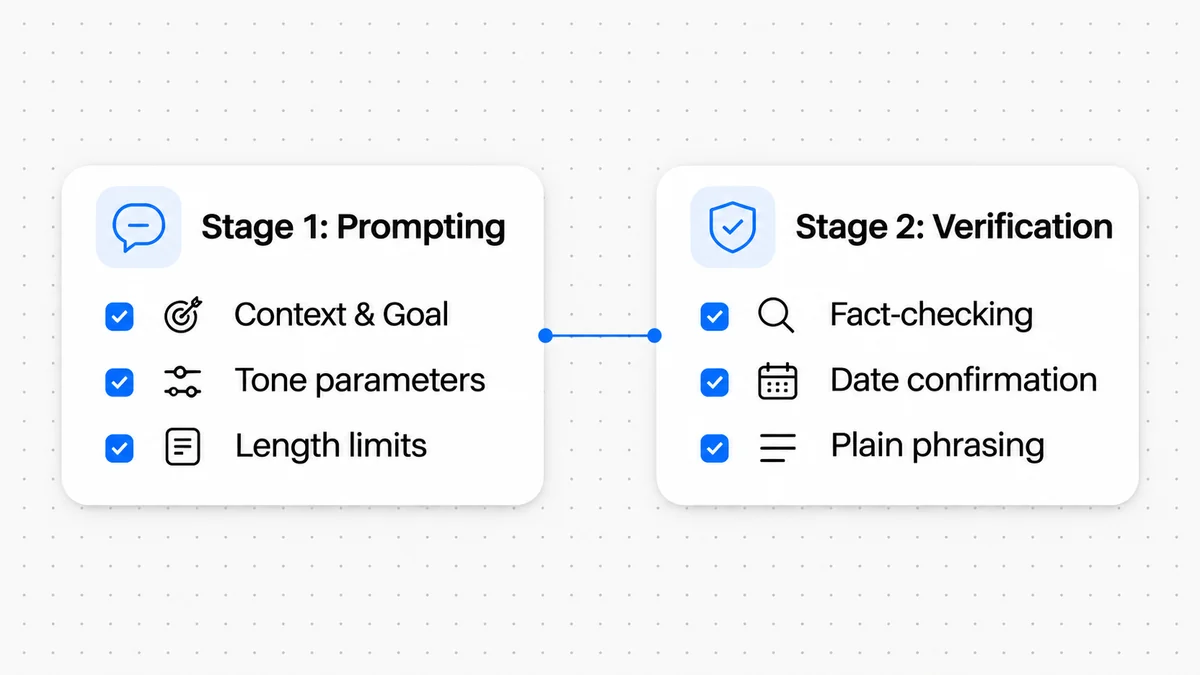
Split the work into two stages:
- Stage 1 (Prompting): Give ChatGPT the context and goal, along with limits on tone and length.
- Stage 2 (Verification): Compare the draft with your notes. Check names and numbers, remove filler, and make sure the promises match what you can offer.
This gives you less to think about at once. You can work from a draft instead of a blank screen, then give the substance your full attention before sending.
The five essential components of a ChatGPT email prompt
"Write an email asking for a report" gives ChatGPT little to work with. You'll get a generic, formal message, often three paragraphs of apologies and placeholders. These five prompt details help it produce something closer to the email you need.
1. Recipient and professional relationship
Say who will read the email and how well you know them. You'd write differently to a long-time engineering teammate than to a prospective client or an executive you've never met. Include whether you've spoken recently and how formal the relationship is.
2. The core objective and desired action
Tell ChatGPT what you need the reader to do. Is it a decision, an approval, a file, or a meeting slot? Harvard Business Review's article on writing emails with military precision emphasizes making the email's purpose clear in the subject line. Give the model a clear request to carry through the message, too.
3. Tone and formality parameters
"A good tone" could mean almost anything. Try "direct and collegial," "calm and professional," "warm and encouraging," or "firm but polite." Brevo's guide to drafting emails with ChatGPT recommends giving context, a desired tone, and a length limit. Choose the description that suits this reader.
4. Explicit length and formatting constraints
Give the draft a length limit: "under 100 words," "no more than four sentences," or "two short paragraphs." Without one, the response tends to run long. You can also ask for action items as bullet points or a bold subject line. The official OpenAI prompt engineering guide recommends explicit constraints and formatting instructions to improve the response.
5. Raw facts and reference material
Supply dates, reference numbers, background details, and decisions in your own notes. Bullet points are enough; you don't need polished sentences. Don't ask ChatGPT to invent a reason for your request or fill in a shared history. Give it material to organize instead of gaps to fill.
Prompt recipes for common workplace email scenarios
These four prompts cover common workplace messages. Read the sample drafts as first attempts: compare what each prompt supplies with what appears in the email.
Scenario 1: Requesting a project status update
For a status request, include the project milestone and timeline. That gives the message a clear reason without making it sound like you're checking up on your colleague.
Prompt: "Draft a polite, direct email from Alex to Sarah, a design colleague, asking for a status update on the homepage wireframes. We agreed to review them this Thursday at 2:00 PM. Keep the email under 75 words. Use a friendly but focused tone. Do not include fluffy opening pleasantries."
ChatGPT draft: "Hi Sarah,
Quick check-in regarding the homepage wireframes. We have our review scheduled for Thursday at 2:00 PM, and I want to make sure you have everything you need from my side before then.
Could you let me know if we are on track for Thursday, or if any questions have come up? Happy to jump on a quick call if helpful.
Best, Alex"
For more guidance on phrasing check-ins, read our guide on how to ask for a status update.
Scenario 2: Following up after an unanswered message
Keep a follow-up patient and specific. Phrases such as "per my previous email" can make a reminder sound like a complaint.
Prompt: "Write a short follow-up email from Elena to Marcus, a prospective vendor who has not replied to our request for a cloud migration proposal sent last Tuesday. Ask if they need additional details about our requirements and state that we plan to finalize vendor selections by next Monday. Keep it under 60 words, calm and professional. Do not add a calendar date."
ChatGPT draft: "Hi Marcus,
Following up on the proposal request sent last Tuesday regarding our cloud migration project.
Please let me know if you need any additional requirements or background information from our team. We plan to finalize our vendor selections by next Monday and would welcome your submission.
Best regards, Elena"
Scenario 3: Declining a meeting or request politely
A polite refusal still needs to say no. Tell ChatGPT where the boundary is so it doesn't soften your answer into a possible yes.
Prompt: "Draft a brief email from Rachel to David declining an invitation to speak on a renewable technology panel next month due to existing project commitments. Thank the organizer, express genuine appreciation for the invitation, but decline clearly without leaving the door open for this date. Keep it under 70 words, warm and appreciative."
ChatGPT draft: "Dear David,
Thank you for the invitation to speak on the renewable technology panel next month. I appreciate you thinking of me.
Unfortunately, I cannot participate due to existing project commitments. I hope the event goes smoothly and look forward to hearing about its success.
Warm regards, Rachel"
Scenario 4: Summarizing meeting action items
ChatGPT can turn rough meeting notes into a readable follow-up. Keep the original notes beside the draft so you can check who owns each task and when it's due.
Prompt: "Turn these meeting notes into a clean follow-up email from Jordan to the operations team:
- Notes: agreed to launch QA testing on Wednesday; Mark handles database migration; Priya updates customer support macros by Friday noon; next check-in Monday 10 AM. Format with a short opening line and bullet points for owners and deadlines. Total word count under 90 words."
ChatGPT draft: "Hi team,
Thanks for today's productive discussion. Here is the summary of our agreed action items:
- Wednesday: Launch QA testing.
- Mark: Handle the database migration.
- Priya: Update customer support response macros by Friday at 12:00 PM.
- Next check-in: Monday at 10:00 AM.
Please reply if anything needs adjustment.
Best, Jordan"
The pre-send verification checklist
Read the draft line by line before sending it. These four checks cover details that can look right at a glance.
1. Verify recipient names, titles, and greetings
Check the greeting first. Models often invent names or fall back on awkward salutations like "Dear Esteemed Colleague." If you supplied a name, compare the spelling with your original. Check titles, team names, and company names too. In a long thread, make sure you're addressing the person you're replying to, rather than an earlier sender.
2. Confirm dates, deadlines, and figures
Check relative dates such as "next Tuesday" against your calendar. Don't assume ChatGPT has worked out the current date or matched the weekday to the right day of the month. Compare every number with your notes, including budgets, version identifiers, and percentages. A transposed digit in a quote or timeline can leave people with different understandings of a binding agreement.
3. Check promises, commitments, and authority limits
Look for promises you never supplied. Customer replies may offer full refunds, immediate replacements, or turnaround times you haven't approved. Pay attention to verbs: "we will deliver tomorrow" should be "we plan to deliver tomorrow" if the schedule isn't confirmed. Our guide to checking an AI rewrite before you send it explains how to review those commitments.
4. Strip robotic tone and synthetic jargon
Read the email aloud. Would you say "delighted to connect" or "in today's fast-paced environment" to this person? Phrases such as "I hope this email finds you well" and "needless to say" often add little. The Digital.gov guidelines on plain language recommend active verbs and simple sentences. Use the words you'd use in conversation when a line sounds like a corporate press release.
Overview: ChatGPT email prompt parameters and verification points
Use this table to match your email goal with the right prompt instructions and pre-send checks.
| Email type | Key prompt parameters | Common ChatGPT tendency | Essential check before sending |
|---|---|---|---|
| Status update request | State the exact project, current deadline, and request a quick reply under 75 words | Adds apologetic filler like "I know you are busy" | Cut apologies and verify that the requested deliverable is named accurately |
| Follow-up on unanswered note | Reference the original date, set a decision deadline, and specify a calm tone | Uses passive-aggressive wording like "per my last email" | Check that the deadline is accurate and the tone remains professional |
| Meeting decline | State the refusal clearly, express thanks, and avoid vague future promises | Leaves false hope with phrases like "maybe next month" | Ensure the refusal is unambiguous and polite without over-explaining |
| Meeting action items | Paste raw bullet notes and instruct the model to organize by owner and deadline | Hallucinates missing assignments or misattributes tasks | Compare every bullet point against original meeting notes for owner accuracy |
| Customer issue response | Specify known facts, acknowledge the issue calmly, and prohibit unauthorized concessions | Promises free products, refunds, or immediate fixes | Verify that commitments match approved support policy and capabilities |
Worked Before and After editing examples
These edits show how to cut filler, correct a changed commitment, and replace jargon without losing the message.
Example 1: Removing generic introductory pleasantries
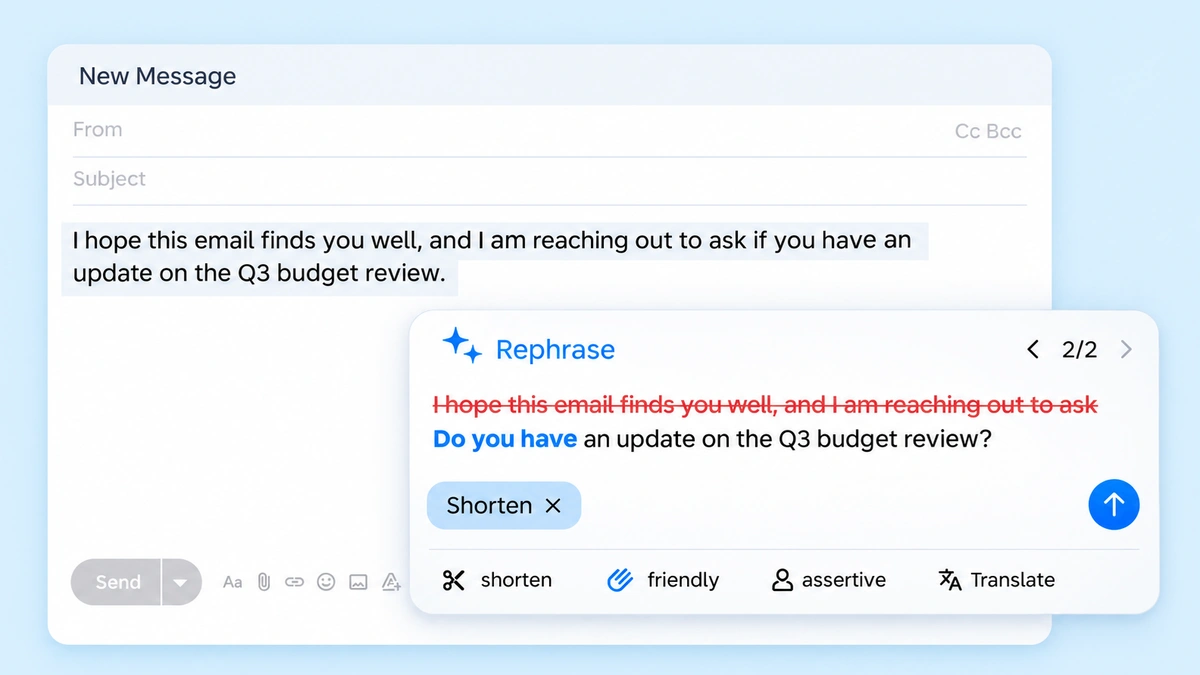
Before: I hope this email finds you well, and I am reaching out to ask if you have an update on the Q3 budget review.
After: Do you have an update on the Q3 budget review?
Why this edit works: The original began with empty pleasantries before stating the question. Cutting the opening pleasantry and indirect lead-in delivers the question immediately so the recipient can read and reply without wading through boilerplate.
Example 2: Reversing an unauthorized timeline guarantee
Before: We can guarantee delivery of the final website assets by Thursday morning without delay.
After: We plan to deliver the final website assets by Thursday morning.
Why this edit works: The prompt asked for a delivery update, but ChatGPT turned an internal schedule target into an unconditional guarantee with "can guarantee ... without delay." Changing the phrase to "plan to deliver" preserves the target date while removing an absolute legal commitment that the team had not finalized.
Example 3: Stripping synthetic corporate jargon
Before: We must synergize our collaborative efforts to maximize operational efficiency on this sprint.
After: We must coordinate our work on this sprint.
Why this edit works: Buzzwords like "synergize our collaborative efforts" and "maximize operational efficiency" obscure the actual task. Cutting the corporate jargon and replacing it with "coordinate our work" gives the team a clear, direct instruction without adding new claims or deadlines.
Example 4: Balancing an over-apologetic client reply
Before: I am terribly sorry for any inconvenience this delay may have caused you, and I sincerely apologize from the bottom of my heart.
After: I am sorry for the delay and any inconvenience it caused.
Why this edit works: The original apologized twice in a single sentence using emotional language that sounded performative. Cutting "terribly," "sincerely," and "from the bottom of my heart" leaves a calm, professional apology that acknowledges the issue without groveling.
Three common mistakes when using ChatGPT for email
Mistake 1: Pasting confidential customer or proprietary data into prompts
Check your organization's data rules and the tool's privacy settings before pasting work material into a chatbot. Keep passwords, proprietary code, financial ledgers, and confidential customer details out of a tool your organization has not approved for them. Use placeholders such as "[Client Name]" or "[Product X]" while drafting, then add the real details in your email client.
Mistake 2: Accepting the first draft without revision
The first draft rarely matches your personal writing style or how you talk with colleagues. Use the generated text to organize your thoughts, then adjust the phrasing so the message sounds like you. Cut filler adjectives and stiff transitions instead of accepting the output just because it is grammatically correct. Our guide on how to make AI text sound human covers practical ways to keep your own voice when revising a draft.

Mistake 3: Generating mass cold outreach that sounds generic
Sending the same formulaic praise to many prospects makes each message less useful. Lines such as "I came across your impressive profile," "I hope you are thriving," and "I would love to pick your brain" say little about why you wrote to this person. Start with your own specific observation and ask ChatGPT to help phrase it. Give the reader a concrete reason to reply.
Choosing between external ChatGPT and an inline writing assistant
Using ChatGPT in a separate tab means writing a prompt, copying the response into your email client, and fixing the formatting. If the draft needs changes, you either go back for another response or edit it in the compose window.
An inline assistant lets you work directly in Gmail, Slack, Google Docs, or Outlook. Wordfully suggests grammar fixes, sentence rephrasing, and tone adjustments in the browser where you're already typing.
You can select a rough sentence and make it friendlier, firmer, or more concise with a single click. You can also choose different underlying models or translate selected phrases without leaving the draft. The Wordfully features page explains these options. They're useful when you want help with a sentence without writing a separate prompt.
Frequently asked questions about writing emails with ChatGPT
Can ChatGPT write replies to existing email threads?
Yes. Paste the relevant parts of the conversation into your prompt, removing email headers, phone numbers, and sensitive personal data first. Say what answer you want to give: "Draft a two-sentence reply confirming receipt and agreeing to meet at 3:00 PM on Thursday." Then check that the reply answers the sender's question.
How do I stop ChatGPT from using clichés like "I hope this email finds you well"?
Tell it what to leave out: "Do not use opening pleasantries, clichés, or filler phrases like 'I hope this email finds you well.' Start directly with the main message." If you use the same preference for every email, add a custom instruction in your ChatGPT settings asking for concise wording without corporate platitudes.
What is the most effective way to control email length in ChatGPT?
Set a limit such as "under 60 words" or "between three and four sentences." If the response still runs long, ask: "Cut this draft in half without losing the core request." Another option is to request the bottom line first, followed by two bullet points.
Can ChatGPT draft emails in multiple languages?
Yes. ChatGPT can draft and translate emails in major languages. Specify the region and formality you need. Greetings and honorifics work differently in German, Japanese, Spanish, and English, so the language alone isn't enough context. Ask a native speaker or use a trusted translation tool to check those details before sending.
Why does ChatGPT sound overly formal or enthusiastic by default?
Without clear instructions, generative tools tend toward cautious, formal wording or enthusiastic marketing language. Ask for a conversational, direct tone. You can also adjust individual sentences with an in-browser assistant until they sound like something you'd say.