
Chrome Spell Check: Settings, Languages and Limits

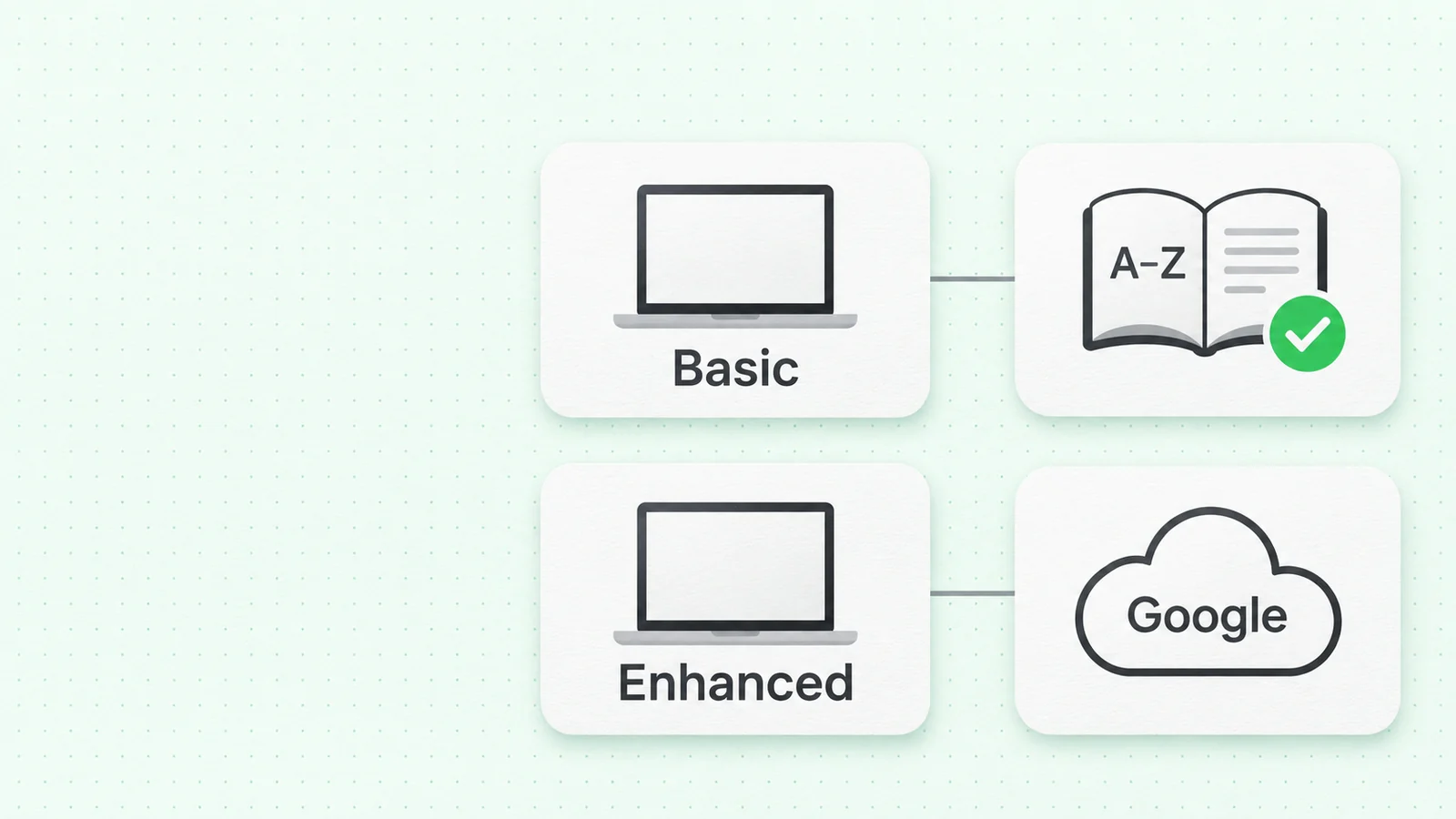
Chrome spell check can flag misspelled words as you type in web text fields. On a computer, turn it on in Settings → Languages → Spell check, then choose Basic or Enhanced. Basic checks spelling without sending the text you type to Google for this service. Enhanced sends text to Google for improved suggestions. Either setting is useful for typos, but a correctly spelled word can still be wrong for your sentence.
The settings below follow Google's Chrome spell check instructions.
Turn Chrome spell check on or off
On a desktop or laptop, open Chrome's three-dot menu, choose Settings, and select Languages. Under Spell check, turn on Check for spelling errors when you type text on web pages. You can also enter chrome://settings/languages in Chrome's address bar to open the Languages settings directly. The spell check control sits below the language preferences.
To test it, type an obvious misspelling into an ordinary text field on a website. If Chrome underlines it, right-click or use your device's suggestion control to see the replacement. Read the whole sentence before accepting it. Chrome can suggest a correctly spelled word that changes what you meant.
Can't find the spelling option? Check which device you're using. Google's help page describes the Chrome setting for computers and notes that spell-check providers differ by operating system. Windows 8 and newer use Windows, Macs use macOS, and Android and iOS rely on their respective keyboards. That's why your menu or personal dictionary may look different from a screenshot taken on another device.
Use the same switch to turn spell check off if you prefer another writing tool or don't want spelling marks in web fields. Chrome will stop checking those fields, but it won't change anything you've already typed.
Basic vs Enhanced: what changes?
Once spell check is on, you can choose between two modes. They differ in how they produce suggestions and where they send your text. Neither promises to catch every error.
| Mode | How Google describes it | Practical choice |
|---|---|---|
| Basic | Chrome or your operating system provides the check. Text you enter in the browser is not sent to Google for spell check. | Start here if you want spelling suggestions without sending typed text to Google for this feature. |
| Enhanced | Uses the spell check also used in Google Search. Text you enter in the browser is sent to Google for improved spelling suggestions. | Consider it if you want those suggestions and are comfortable with that data flow. |
These distinctions come from Google's explanation of Basic and Enhanced spell check. Google also says Basic uses a locally stored dictionary in its service documentation. Its Enhanced spell-check data page explains that the service sends text from browser text boxes to Google for improved suggestions. If you use Chrome for sensitive drafts, read those descriptions before turning on Enhanced.
Keep the website's own handling of your text in mind, too. It may receive what you type when you submit or save it, whichever spell-check mode you choose. Basic and Enhanced control the additional spelling service; choosing one doesn't tell you whether a message is safe to paste into a site. If your workplace manages Chrome, an administrator may also control which spell-check settings or languages you can change. Google's Chrome policy documentation describes those controls.
Add a language for writing and spelling
If you write in more than one language, first add the language under Settings → Languages → Preferred languages → Add languages. Select the language and choose Add. Google's language settings guide gives those steps and explains how to reorder or remove languages.
Then return to Spell check. If Chrome shows Use spell check for, turn on the languages you write in. Adding a language to Preferred languages sets a browsing preference, so check the spelling control separately. Don't assume Chrome is checking the new language just because it appears in your list. Some systems use the operating system's spelling settings, which can change the controls you see.
If you regularly write in US English and Spanish, add both to your preferred list. Where your device allows it, enable spelling support for both, too. Try a short sentence in each language and look at the underlines. A dictionary may flag a proper name, regional spelling, or borrowed term even when you've used it correctly.
Chrome's display language is a separate setting. Switching the menus to another language doesn't mean Chrome is checking your draft in that language. Page translation has a different job again: it helps you read websites, rather than proofread what you write. When adjusting your setup, check the setting for the job you need, whether that's changing menus, reading a page, or checking spelling.
For a language Chrome or your computer does not support, Google points readers to Google Input Tools for entering text. Those tools help you type characters. They don't guarantee a grammar check of what you write.
Add a custom word when Chrome flags it repeatedly
A dictionary won't necessarily recognize a name, product term, or technical word you use. Look for a custom spelling dictionary in Chrome's language settings, and check the word's spelling before adding it. Google's help says you can update custom words on some operating systems. On your device, the option may be somewhere else or unavailable.
Suppose you type the project name Lumora every day. Once you've confirmed the spelling, adding it to your dictionary saves you from reviewing the same underline over and over. But if your team hasn't agreed on how to spell a term, adding it can hide that inconsistency. Settle on the house spelling first.
Take extra care with short words. Adding one tells the checker to accept that sequence of letters, without teaching it when the word makes sense. Accidentally add a common typo and future mistakes can become harder to spot. Read the sentence before choosing Add to dictionary or the equivalent on your device.
You'll still need to check a shared document for consistent product names, capitalization, and hyphenation. A custom dictionary only helps with the repeated terms you've added. If you work across several devices, check how the dictionary behaves on each one; don't assume all your settings follow you automatically.

What Chrome spell check can miss
A spelling checker can flag a word its dictionary doesn't recognize. Errors are harder to catch when every word in the sentence is valid. That's why a draft with no underlines can still need editing.
Take this sentence:
Before: I sent the form yesterday, but its still marked incomplete.
After: I sent the form yesterday, but it's still marked incomplete.
The apostrophe changes its, a possessive word, to it's, meaning it is. Both forms are valid words, so you need the sentence around them to decide which belongs here.
The same problem appears in their, there, and they're. A spelling tool may recognize all three even when you've chosen the wrong one. Our guide to commonly confused words shows how to test pairs like these in context.
Grammar also includes agreement, tense, punctuation, and sentence structure. In The list of changes are ready, every word is spelled correctly, but the singular subject list calls for is. In Lets review it, the missing apostrophe changes the reading. Chrome may offer some suggestions beyond obvious misspellings depending on mode and platform, but its built-in spell check should not be your only grammar review.
Then there's what you meant to say. Please send the draft to Maya and Please send the draft to Mara are both well-formed sentences. A dictionary can't know which colleague you meant. The same goes for a correct-looking date, file name, or address. A spelling suggestion cannot verify the facts of your message.
Where you type matters, too. Chrome may check a heading differently from a text box, and a web app may handle editing itself. If you see no underlines on one page, try a normal input field on another before assuming spell check is off everywhere. Check the app's own editing or language controls as well.
When a writing extension helps
Chrome's built-in check is useful for a quick pass over obvious typos. A writing extension can help when you need to check the sentence around a word or change how a message sounds. Spelling tells you whether a word looks valid. Grammar and tone checks help you decide whether the sentence says what you intend.
Wordfully is a browser extension that offers inline grammar fixes and explanations in Chrome, Edge, Brave, and Opera, as described on our features page. It can also rephrase text and change tone. You'll still need to decide whether a suggestion fits. Read each proposed change before accepting it, especially when your message includes names, numbers, or commitments. The Wordfully browser extension overview shows the workflow, and our guide to checking an AI rewrite gives a short review routine.
For example, if you type She writes a email, and its ready, a grammar pass can look at both the article before email and the missing apostrophe in it's. A simple spelling pass may not catch either because a and its are legitimate words. The fix should keep your meaning while correcting those forms.
An extension is also useful when the sentence is technically correct but the tone does not fit the reader. Send the file now might be too abrupt for a first request. Could you send the file? asks for the same action more gently. Which works better depends on the relationship and how urgent the request is. A spell checker can't reliably make that choice for you.
Before installing an extension, read its permissions and privacy information to see whether they suit your needs. You can leave Chrome's Basic spell check on while using an extension. If their suggestions overlap, check which tool made each mark. To keep a single set of prompts, adjust the settings and try them in a draft field.
A practical final check before sending
Start with the underlined words, but resist accepting a suggestion just to clear a red mark. Check that the replacement is the word you meant and suits the dialect you're writing in. For a name, compare the spelling with a source you trust. If it's correct, leave it as it is or add it to your dictionary.
Next, read without following the underlines. Check for real-word mix-ups and missing small words. Do the subjects and verbs agree? Does the punctuation change the meaning? Give names, dates, links, and attachments their own pass, since an error in those can matter more than a visible typo.
Before sending, read the message as its recipient would. Make sure it asks for the right action in a tone that suits the situation. If you've accepted a tool's suggestions, check that you haven't changed a promise or dropped a condition. You should be comfortable sending the words that are on the page.