
How to Check Spelling in Gmail Before Sending

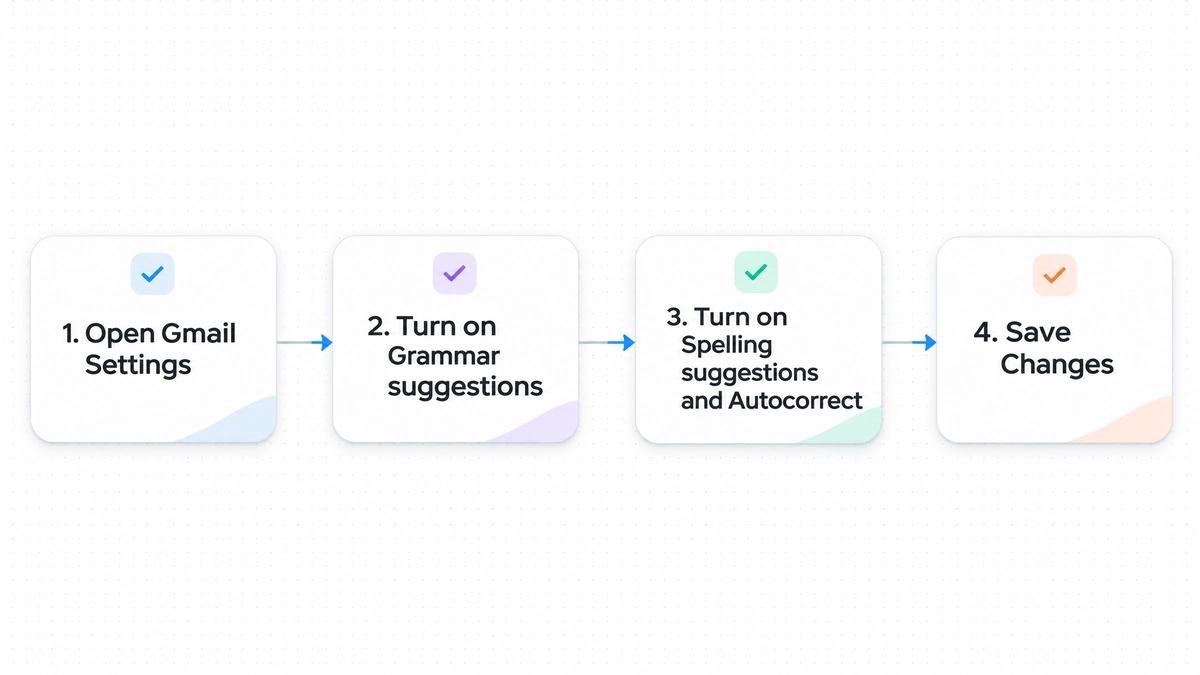
To check spelling in Gmail before sending, look for red and blue underlines in your draft. You can also click More options (the three vertical dots at the bottom right) and select Check spelling for a manual check. If nothing gets flagged as you type, open Settings, select See all settings, and find Grammar suggestions, Spelling suggestions, and Autocorrect on the General tab. Turn them on, then click Save Changes.
An obvious typo can distract someone from what you're trying to say or leave them unsure what you mean. Gmail catches plenty of mistakes, but it still needs your help. A quick review before sending gives you a chance to catch the wrong name, a missing word, or a date that looks fine to a spell checker.
How spell check works in Gmail
Gmail uses automated rules and machine learning models to check text as you type. Google describes its spelling flags, grammar suggestions, and automatic typo corrections in its Workspace announcement on as-you-type corrections. These appear right in the compose window.
On the web, Gmail marks possible errors in the compose window. The underlines tell you what kind of issue it found:
- Red squiggly underline: Marks words that do not match recognized dictionary entries or typical spelling patterns. Clicking the flagged word opens a small popover showing recommended replacements and an Ignore option.
- Blue squiggly underline: Marks potential grammar errors, such as subject-verb agreement problems, repeated words, or incorrect word combinations.
- Dashed underline: Indicates an automatic correction. When Gmail automatically fixes a recognized typo as you type, it briefly underlines the corrected word so you notice the change.
To accept a suggested correction, click the underlined word and choose the replacement text. If the flagged word is a specialized term, foreign name, or company acronym that is spelled correctly, click Ignore to remove the underline. If Gmail automatically corrects a word you intended to keep, press Ctrl + Z on Windows or Cmd + Z on a Mac immediately to undo the substitution, as outlined in Google's official guide to checking spelling and grammar.
The Gmail app on Android and iOS works differently. It doesn't have a separate spell checker. Your phone's active keyboard handles text checking, spelling underlines, and autocorrect.
| Feature | Gmail Web (Desktop) | Gmail Mobile (Android) | Gmail Mobile (iOS) |
|---|---|---|---|
| Where to check settings | Gmail settings; the browser may also check spelling | Active device keyboard, such as Gboard | Active device keyboard |
| Visual flag for spelling | Red squiggly underline | Red underline or suggestion strip | Red dotted underline |
| Grammar help | Blue squiggly underline | Keyboard dependent; Gboard's Fix it is limited by availability | Keyboard dependent |
| Manual scan option | Check spelling in More options; Ctrl + M or Cmd + M opens spelling suggestions | Use the keyboard's available tools | Use the keyboard's available tools |
| Autocorrect undo | Ctrl + Z or Cmd + Z | Backspace key | Tap highlighted word or backspace |
| Settings location | Gmail Settings > General tab | Device Settings > System > Languages | Device Settings > General > Keyboard |
How to turn on spell check and autocorrect in Gmail
If you never see red or blue underlines when typing on your computer, your account's writing suggestions may be off. You can turn them on in Gmail's web settings.
Step 1: Open Gmail settings
Open Gmail in your desktop browser and sign in. Click the Settings gear in the upper-right corner, then See all settings in the panel that opens.
Step 2: Locate language assistance options on the General tab
The General tab opens by default. Scroll down to these three settings:
- Grammar: Select Grammar suggestions on to flag phrasing and agreement issues with blue underlines.
- Spelling: Select Spelling suggestions on to mark unknown or misspelled words with red underlines.
- Autocorrect: Select Autocorrect on to fix common typos automatically as you type.
Step 3: Save your changes
Scroll to the bottom of the General tab and click Save Changes. Gmail reloads your inbox and applies the settings to new drafts. Changing a toggle alone doesn't save it. If spell check stops working after a settings change, check whether you missed this button before leaving the page.
How to run a manual spell check before you send
You may prefer to finish writing before dealing with corrections, or you may have live underlines turned off. In either case, you can run a manual check from Gmail's web compose window.
To check your draft manually:
- Open your draft in the compose window and make sure your cursor is inside the message body.
- Move your cursor to the bottom-right corner of the compose toolbar.
- Click the More options icon, represented by three vertical dots next to the trash bin icon.
- From the menu, select Check spelling. Gmail's keyboard shortcuts also list Ctrl + M on Windows and Cmd + M on Mac for opening spelling suggestions.
- Review the words Gmail flags. Click each one to consider a replacement, or ignore it when the word is correct.
- Read the full draft once more after making changes, including the subject and recipient fields.
A manual check is useful for a long email, proposal, or status update. It lets you review the whole draft at once, including words you might have scrolled past while writing.
Browser spell check versus Gmail built-in check
Google Chrome, Mozilla Firefox, Microsoft Edge, and Apple Safari have their own spell checkers. Your browser's checker can run alongside Gmail's, so you may see different suggestions if their dictionaries disagree.
Google Chrome Help on spell check describes two modes you can choose in Chrome:
- Basic spell check: Uses a dictionary on your computer or supplied by your operating system. It works offline without sending what you type to Google servers.
- Enhanced spell check: Sends text you enter in your browser to Google for improved spelling suggestions.
To change Chrome's settings, open the browser menu, select Settings, then Languages in the left sidebar. Scroll to Spell check. You can turn the checker on or off, choose languages, and edit your personal word list.
If you see conflicting corrections, check whether Chrome and Gmail are both offering suggestions and whether their language settings match. Regional spelling differences, such as color and colour, are worth checking before you accept either suggestion.
Setting up spell check on Android and iPhone
If spelling suggestions disappear in the Gmail app, check your phone's keyboard settings. That's where you control mobile spell check.
Configuring spell check on Android devices
Android keyboards differ, so menu names may vary. With Gboard, you can review text correction settings from the keyboard itself:
- Open a Gmail draft and tap the message body to show Gboard.
- Tap the keyboard's features menu, then More and Settings.
- Tap Text correction and choose the suggestions you want.
You can save custom words in your mobile dictionary, as Google's Gboard support documentation explains. If Gboard flags a technical term or family name that you've spelled correctly, tap the red-underlined word and select Add to dictionary. It won't flag that word in future drafts.
Configuring spell check on iPhone and iPad
On iOS, the native keyboard checks text in apps such as Gmail.
- Open the Settings app on your iPhone or iPad.
- Tap General, then tap Keyboard.
- Review the available options under the All Keyboards section.
- Ensure the toggles for Auto-Correction, Check Spelling, and Predictive are set to on.
With Check Spelling on, iOS marks words it doesn't recognize. Tap a marked word to review the suggested correction. Auto-Correction can replace misspelled words as you type. Apple's iPhone editing guide explains the spelling controls, and its keyboard settings let you turn Auto-Correction on or off.
Read mobile drafts after autocorrect has finished, especially when typing quickly. A keyboard can replace a technical word you intended with an everyday word that changes the meaning. Check the final sentence before sending.

What Gmail spell check misses
A draft without underlines can still contain errors. Gmail checks spelling and grammar patterns, but it can't judge every word against what you meant to say.
1. Contextually confused words and homophones
A dictionary-based checker asks whether a word exists in its vocabulary. If your typo happens to form another English word, it can pass the check even though it doesn't belong in the sentence.
Common examples include:
- Their, there, and they're
- Affect and effect
- Principle and principal
- Loose and lose
- Complement and compliment
- Stationery and stationary
In "The new policy will not effect our team," effect is a correctly spelled noun, so Gmail may leave it alone. The sentence needs the verb affect. Our guide to commonly confused words covers pairs worth checking yourself when the message matters.
2. Missing or extraneous function words
Moving words around while editing can leave a duplicate behind or remove an article or preposition you need. You might overlook "We met at the office to to discuss the budget" or "Please send the file Tuesday morning." Gmail catches some repeated words, but short pairs such as that that or in in can slip through, especially across line breaks.
3. Numerical errors and inverted dates
A spell checker doesn't know whether your project is due on November 14 or November 21. It won't warn you if you type $5,000 instead of $50,000, or promise delivery on Wednesday when the date falls on Thursday. Compare these details with your project notes.
4. Incorrect recipient names and company titles
Getting a client's name or company name wrong can strain a working relationship. Names vary enough that Gmail may flag a correct spelling and miss an incorrect one. It may not catch Brian instead of Brain, or John instead of Jon. Check against the person's own spelling.
5. Inappropriate tone or ambiguous phrasing
"Send the report now" has no spelling or grammar mistakes, but it can sound harsh to a colleague. A long, technically correct email can also bury the request so thoroughly that the reader misses it. Read for tone and meaning as well as spelling. Our guide to asking for a status update gives examples of clear requests that don't sound abrupt.
Worked Before and After editing examples
These three workplace examples show what a manual review can catch after spell check.
Example 1: Reviewing a client progress report
Here is a draft update sent to an external client. The author relied on automatic spell check, which missed a homophone, an incorrect preposition, and a duplicate word.
Before: Dear Marcus, I hope your having a productive week. We completed the audit yesterday and found that the system operates in compliance to all regional guidelines. Please find attached our summary report, and let us know if you would like to to schedule a review call before Friday.
After: Dear Marcus, I hope you're having a productive week. We completed the audit yesterday and found that the system operates in compliance with all regional guidelines. Please find attached our summary report, and let us know if you would like to schedule a review call before Friday.
Why this edit works: The word your was corrected to you're because the sentence requires the contraction of you are. The preposition following compliance was updated from to to with, matching standard business phrasing. The repeated word to was removed, and no new facts or commitments were introduced.
Example 2: Verifying an internal project handover
Here is an internal handover note regarding an upcoming database transfer.
Before: Hi team, please confirm that everyone has recieved the migration checklist. We need each lead to ensure their department is stationary during the database transfer on Thursday evening.
After: Hi team, please confirm that everyone has received the migration checklist. We need each lead to ensure their department remains inactive during the database transfer on Thursday evening.
Why this edit works: The word received is the correct spelling. In the second sentence, stationary describes a lack of physical movement, while the note means the department should pause activity during the database transfer. Using remains inactive conveys that intended pause clearly without introducing new details.
Example 3: Polishing an AI-generated draft before sending
An AI-written email can sound smooth while keeping a subtle mistake or adding unnecessary words. Before sending one, check an AI rewrite against your intended deadlines and facts.
Before: Good morning Sarah, following up on our previous discussion regarding the software license renewal, we wanted to ensure that you have had an opportunity to review the quote that was sent over last Tuesday.
After: Good morning Sarah, following up on our discussion about the software license renewal, we wanted to ensure you had an opportunity to review the quote sent last Tuesday.
Why this edit works: The phrase previous discussion was simplified to discussion because following up already establishes that the discussion occurred in the past. Removing regarding, that was, and over eliminates wordiness while preserving the exact timeline, quote reference, and recipient details.
Step-by-step pre-send proofreading checklist
Before pressing the blue Send button, take sixty seconds for this four-step check. Give the details that spell check misses their own pass.
-
Step 1: Scan for visual highlights Review each red or blue underline. Click unfamiliar words to read the suggested correction. For a flagged name, check an original document or email signature before choosing Ignore.
-
Step 2: Read backward sentence by sentence Start with the last sentence and work toward the greeting. Reading in the usual order lets you anticipate the next thought, which makes missing articles and duplicate words easier to skip. Reading each sentence on its own helps those typos stand out.
-
Step 3: Verify names, dates, links, and attachments Inspect the non-prose elements of your message:
- Are the recipient names in the To field and the greeting spelled correctly?
- Does the subject line match the current message topic, especially when replying to long threads?
- If you wrote "attached," did you actually attach the file? (Gmail often displays an alert if you mention attachments without attaching one, but verifying manually prevents missed files.)
- Are external hyperlinks pointing to the correct destinations?
- Are calendar dates and times accurate?
- Step 4: Evaluate clarity and requested actions Can the recipient tell what you need them to do next? If you need a response by a specific date, state it. Leaving the timing open makes it harder for them to act.
| Inspection Area | What to Look For | Common Failure Point |
|---|---|---|
| Visual flags | Red and blue squiggly underlines | Dismissing a flag without reading the suggestion |
| Homophones | Their/there, its/it's, affect/effect | Spell check ignores valid dictionary words |
| Key details | Dates, times, dollar amounts, project codes | Checkers cannot verify external facts |
| Attachments | Relevant documents uploaded and named cleanly | Mentioning an attachment but forgetting to upload it |
| Recipient fields | Correct email address and exact name spelling | Autocomplete inserting the wrong colleague |

Using Wordfully for real-time writing assistance in Gmail
If you want help reviewing whole sentences or adjusting tone, Wordfully works directly in Gmail and other web apps.
Wordfully is a Chrome extension that is installed once, so you can edit where you write without copying a draft into a separate proofreading website.
You can use it to:
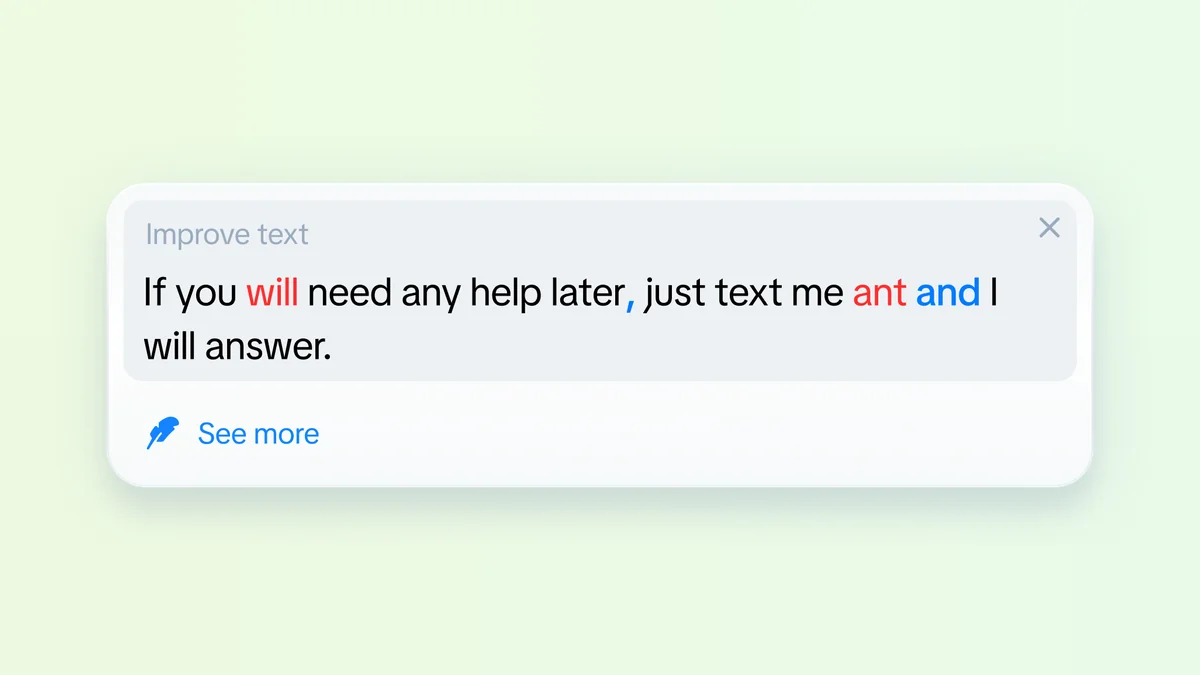
- Fix several errors in a sentence: The Improve text tooltip marks errors in red and shows the corrected sentence in blue. Review the reasons for the changes, then apply multiple corrections with a single click.
- Rephrase awkward text: Rework a repetitive paragraph or unclear sentence while keeping your meaning.
- Adjust tone: Make a draft more friendly, assertive, or concise to suit an executive, client, or teammate.
- Work across apps: Use the same assistance in Gmail, Google Docs, Slack, Notion, LinkedIn and most other web apps.
Our overview of the Wordfully AI writing assistant explains more about using the extension while you write.
Frequently asked questions about Gmail spell check
Why is spell check not working in my Gmail draft?
Start with the spelling and grammar settings described above and make sure you've saved them. If those are on, check your browser's spell check settings. An ad-blocker or script-blocking extension may also be interfering with Gmail's scripts.
What is the keyboard shortcut for spell check in Gmail?
Use Ctrl + M on Windows or Cmd + M on Mac to open spelling suggestions. You can also open More options in the compose window and select Check spelling.
Can I add custom words to Gmail's dictionary?
Gmail on the web doesn't have a separate page for managing a personal dictionary. Choosing Ignore skips a flagged term in the current draft. For a permanent desktop word list, use your browser's dictionary settings, such as Chrome's Customized spell check list. On Android, tap a red-underlined word in Gboard and select Add to dictionary.
How do I turn off autocorrect in Gmail?
On desktop, open the Settings gear, choose See all settings, and find Autocorrect on the General tab. Select Autocorrect off, then scroll down and click Save Changes. On mobile, use your phone's keyboard settings: Text correction in Gboard on Android, or General > Keyboard on iOS.
Does Gmail check grammar in languages other than English?
Google says Gmail's spelling and grammar checks may not be available in every language. If suggestions are missing, check your Gmail language and the language selected for your browser or mobile keyboard. Read the draft yourself before sending, especially when you switch languages within a message.