
How to Write a Professional Email

A professional email tells the reader why you're writing and makes it clear how to respond. Start with a descriptive subject line, greet the recipient, state your purpose, make a specific request, and finish with a sign-off. That five-part structure helps someone understand what you need within seconds.
A vague subject line leaves people guessing about priority. A request buried in background details can lead to a missed deadline, and a long explanation takes time away from other work. You don't need stiff language to avoid these problems. Decide what you need to say before you start typing, then say it directly and courteously.
The 5-part structure of an effective professional email
Readers expect a familiar email format. These components keep the details easy to find, including when someone reads your message on a small phone screen.
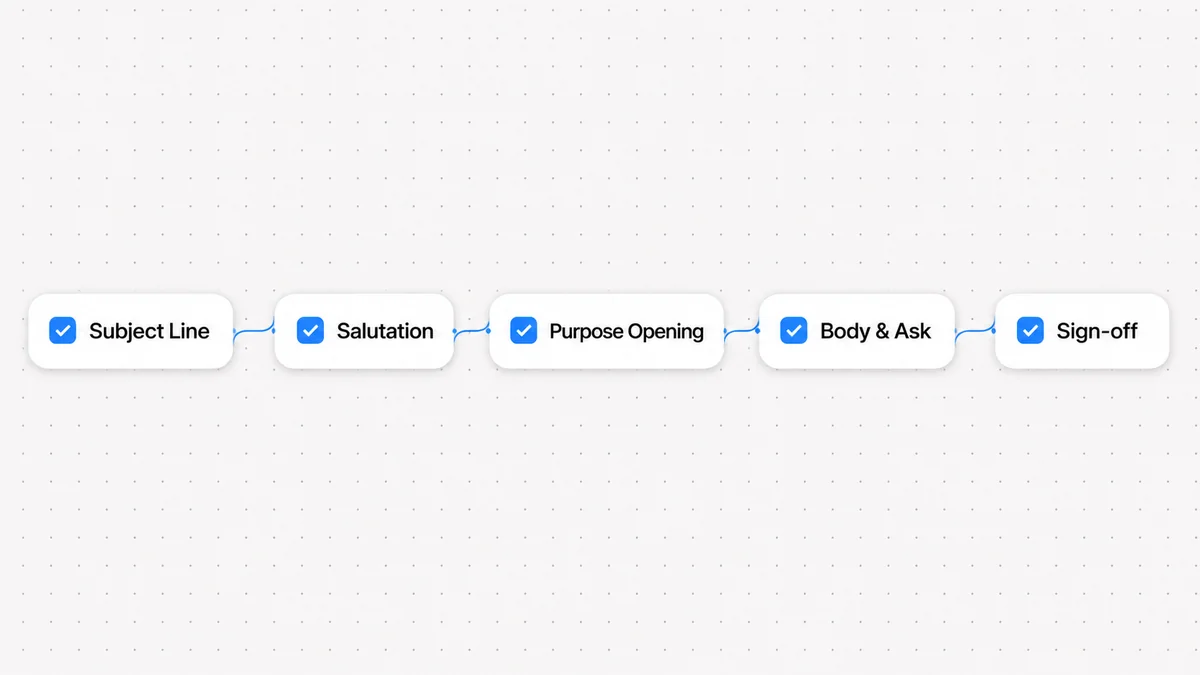
| Email component | Core function | Best practice | Example |
|---|---|---|---|
| Subject line | Summarizes content and priority | State topic and action in 30 to 50 characters | Decision Needed: Q3 Marketing Budget |
| Salutation | Acknowledges the recipient | Match organizational formality and use proper titles | Dear Dr. Patel, / Hi Sarah, |
| Purpose opening | Explains why you are writing | State the main point in the first two sentences | I am writing to share the updated launch timeline. |
| Body and ask | Delivers details and calls to action | Use short paragraphs and single-topic bullet points | Could you confirm your approval by Thursday? |
| Sign-off | Concludes courteously with contact data | Use a professional closing followed by your signature | Best regards, / Sincerely, |
1. The subject line
The subject line helps a reader decide whether to open your message now or leave it for later. It also helps them find the email again. Give them enough detail to recognize the topic without opening it.
The Carnegie Mellon University email best practices guide advises keeping subject lines between 30 and 50 characters including spaces. Longer lines get cut off on mobile screens, so put the main purpose or requested action at the start.
If your team uses labels such as ACTION or INFO, use one consistently at the start of a subject line. The label should clarify the request, not replace a description of the topic.
Compare these subject lines:
- Vague: Quick question
- Specific: Question: Revised vendor contract terms
- Vague: Project update
- Specific: INFO: Migration schedule for customer database
- Vague: Need help
- Specific: ACTION: Sign-off required for onboarding deck
2. The salutation
Choose a greeting that fits your relationship with the reader and the message you're sending. Company culture matters, too.
The Purdue OWL email etiquette guide recommends formal greetings such as "Dear Dr. Jones" or "Dear Ms. Smith" when writing to superiors or people you don't know. A professional title and surname are the safest choice for formal or academic correspondence and a first email to an external partner.
"Hello [Name]" or "Hi [Name]" works for familiar colleagues, clients you know, and internal teams with a casual working style. Save "Hey" or "What's up" for people you know well; avoid them in a first email or a sensitive business exchange.
When addressing a group or an unknown recipient:
- Use "Dear Hiring Team," or "Dear Admissions Committee," instead of the outdated "To Whom It May Concern."
- Use "Hello Everyone," or "Hi Team," when writing to multiple colleagues on an internal thread.
- If you know the recipient's surname but not their gender, use their full name directly, such as "Dear Morgan Lee."
3. Opening with your purpose first
Don't make the reader work through several sentences of small talk to find your point. A brief pleasantry is fine, but a long introduction delays the reason for your email.
The MIT Communication Lab guide on professional email recommends putting your main goal in the first few lines. Someone who reads only the opening preview on their phone should still understand why you wrote.
If you want a friendly opening, keep it to a single brief sentence before stating your purpose:
- "I hope your week is off to a great start. I am writing to request your feedback on the client proposal."
- "Thank you for the detailed notes from yesterday's meeting. I have prepared the revised draft for your review."
Both openings get to the purpose within two sentences.
4. The core body and specific ask
Include the background your reader needs to understand the request and act on it. Leave out commentary that doesn't help them answer. The more they have to read, the easier it is to miss a question.
Keep paragraphs to two to three sentences each. Use bullets for separate questions, requirements, or other distinct points. That makes each item easy to spot and gives the reader a straightforward way to organize their reply.
Say what you need, who should do it, and when it's due. "Let me know your thoughts" leaves the response open. "Please confirm whether you approve these budget figures by Thursday at 3 PM" tells the reader exactly what to send back.
5. Professional sign-off and signature block
Finish with a courteous sign-off, then give the reader your contact details in a signature block.
Common business sign-offs include:
- "Best regards," (works in a wide range of professional messages)
- "Sincerely," (suits formal, legal, or official external correspondence)
- "Thank you," or "Thanks," (useful when asking for something or acknowledging help)
- "Kind regards," (a courteous option for clients and coworkers)
Avoid casual sign-offs such as "Cheers," "Warmly," or "Take care" unless you share a close working relationship with the recipient.
Include your full name, title, department, organization, and primary contact phone number below the sign-off. Leave social media links and inspirational quotes out of a professional signature.
The IONOS guide to writing business emails notes that large attachments put a burden on mailboxes and mobile data connections. Attach only essential files. Compress large documents or use a shared cloud storage link for files larger than 5 megabytes.
How to adjust your message tone: firmer or shorter without being rude
A timid request can make a deadline seem optional. A harsh one can put the reader on the defensive. Aim for a message that sets a clear expectation and gives the person room to respond.
Making an email firmer without sounding aggressive
If an agreement has slipped or you need a definite answer, remove hesitant wording and state the facts. You can be firm while keeping blame out of the message.

Follow these four steps to add firmness:
- Cut unnecessary apologies. "I'm sorry to bother you," "I was just wondering," and "Whenever you get a chance" make a request sound less certain. Remove them.
- Explain the dependency. Say what needs to happen next and why your request matters to that work. This explains the urgency without blaming the reader.
- Give a specific deadline. Name a day and time instead of saying "soon" or "as soon as possible."
- Use a polite, direct request. "Please submit your notes by Friday" sets a clear expectation without sounding hostile.
For a pending deliverable, our guide on how to ask for a status update covers when to follow up and what to say.
Making an email shorter without sounding blunt
You can cut an email down and still sound courteous. Keep the greeting and the context someone needs to answer; remove the repeated explanation around them.
To shorten a message:
- Cut openings such as "I am writing this email because" or "As you may already know."
- Summarize the background in one sentence instead of retelling the whole conversation.
- Keep to one clear request per email. If you need three separate complex decisions, consider a phone call or a structured document.
The Wordfully features let you check grammar and make a message friendlier, firmer, or shorter where you type in your browser. You can use them for a quick reply or a longer draft.
Worked Before and After editing examples
These four examples remove clutter and hesitant wording while keeping the facts. The edits add no dates, reasons, or details that weren't in the drafts.
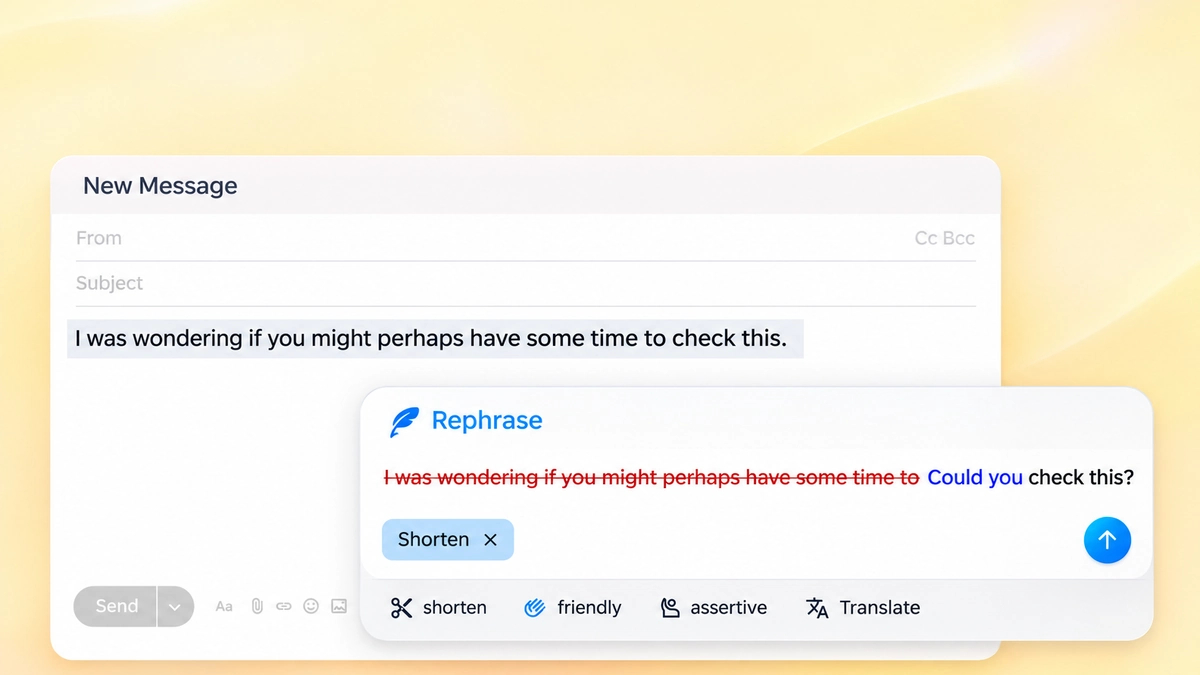
Example 1: Removing timid hedges from a review request
Before: I was wondering if you might perhaps have some time to check this.
After: Could you check this?
Why this edit works: The original draft stacks three separate softening phrases: "was wondering," "might perhaps," and "have some time to." These qualifiers make the writer sound hesitant and uncertain. The revision turns the sentence into a direct, polite request while keeping the same action.
Example 2: Making a vague update request firmer and clearer
Before: Let me know whenever you get around to looking at the project summary.
After: Please review the project summary.
Why this edit works: The phrase "whenever you get around to looking at" signals that the task has zero priority. Changing the opening to "Please review" establishes a professional expectation while remaining polite. The edit removes filler without inventing a deadline.
Example 3: Shortening an over-explained status update
Before: I am writing this note to let you know that our team finished the quarterly numbers, and we also uploaded the spreadsheets to the shared folder, so you can look at them whenever you have a free moment.
After: Our team finished the quarterly numbers and uploaded the spreadsheets to the shared folder for your review.
Why this edit works: The opening clause "I am writing this note to let you know that" adds no information. The trailing clause "so you can look at them whenever you have a free moment" adds little to the request. Combining the two central achievements into a single active sentence preserves the facts.
Example 4: Clarifying an ambiguous meeting request
Before: We should probably try to get together soon to talk about the proposal if that works for you.
After: Let us meet to discuss the proposal.
Why this edit works: Words like "probably," "try to," "get together soon," and "if that works for you" dilute the invitation and require unnecessary back-and-forth messages. The edited sentence states the objective directly. It removes hesitant filler while preserving the shared goal.
Common professional email mistakes and how to prevent them
When you're working through a crowded inbox, it's easy to send a message before checking how it reads. Watch for these common mistakes.
1. The ambiguous call to action
Ending an email with "Thoughts?" or "Let me know what you think" forces the recipient to guess what type of feedback you want. Do you need approval on pricing? A proofread of the copy? Confirmation of availability?
Specify the exact outcome you need:
- Ambiguous: Let me know what you think about the deck.
- Actionable: Please review slides 4 through 6 and confirm whether the budget figures match your records.
2. Accidental passive aggression
Some familiar workplace phrases can sound defensive or condescending, even if you don't mean them that way:
- Avoid: "Per my previous email..." (Implies the reader is negligent or incompetent).
- Replace with: "As noted below in our earlier discussion..."
- Avoid: "Re-attaching for your convenience..." (Reads as sarcastic).
- Replace with: "Here is the file again for easy reference."
- Avoid: "Please advise." (Vague and dismissive).
- Replace with: "Could you confirm how you would like us to proceed?"
3. Confusing similar words and homophones
A typo or wrong word can distract from an otherwise clear message. Pairs such as accept and except, or principal and principle, often come up in business emails. Check our guide to commonly confused words if you're unsure which word belongs in a sensitive report.
4. Sending unverified AI-generated text
An automated draft can save time, but read it before sending. Suggestions may include incorrect claims, awkward idioms, or more certainty than you intended. The five-step checklist on how to check an AI rewrite helps you review meaning, numbers, and tone.
Four complete templates for common workplace scenarios
Use these templates as a starting point. Replace the details with your own and keep the request easy to find.
Template 1: Direct request for information or deliverables
Subject: REQUEST: Feedback on Q4 Onboarding Schedule
Dear [Name],
I am finalizing the onboarding schedule for our incoming Q4 team members.
Could you please confirm the following two items by Thursday, October 15, at 4 PM:
- Who from your team will lead the product architecture session on Tuesday?
- Does your department require any additional training software licenses?
I have summarized the full weekly agenda in the attached one-page outline. Thank you for your support with this transition.
Best regards,
[Your Name]
[Your Title]
[Your Organization]
[Your Phone Number]
Template 2: Following up on a missed deadline
Subject: FOLLOW-UP: Signed Vendor Agreement for Office Supplies
Dear [Name],
I am following up on the vendor agreement sent on Monday, November 2.
Our finance department requires the signed document by Wednesday at 12 PM in order to process this month's purchase orders.
Please let me know if you need any adjustments to the contract terms before signing. Thank you for your assistance.
Sincerely,
[Your Name]
[Your Title]
[Your Organization]
[Your Phone Number]
Template 3: Meeting agenda and preparation materials
Subject: AGENDA: Strategy Planning Session / Thursday, Nov 12
Hi Everyone,
Ahead of our planning session this Thursday from 10 AM to 11 AM, please review the discussion topics below:
- Review of third-quarter user retention metrics
- Resource allocation for the platform redesign
- Next steps and project owners for December
The slide presentation and background notes are available in the shared project drive. Please come prepared to share your department's hiring priorities.
Best regards,
[Your Name]
[Your Title]
[Your Organization]
Template 4: Brief status update to leadership
Subject: INFO: Project Alpha Migration Milestones
Dear [Manager's Name],
Here is a summary of our progress on Project Alpha as of Tuesday morning:
- Data migration: Completed on schedule with zero recorded downtime.
- User verification: 92 percent of test accounts confirmed successful login.
- Next milestone: Staging environment testing begins tomorrow at 9 AM.
Our team remains on track for full public deployment by November 20. I will send another brief update once staging tests conclude.
Kind regards,
[Your Name]
[Your Title]
[Your Organization]
Frequently asked questions about professional emails
How long should a professional email be?
Aim for 50 to 150 words in a routine business email, ideally short enough to fit on a single screen without much scrolling. If you need a detailed explanation, data tables, or background documents, summarize the point in the email and link to a separate document.
Is it acceptable to use bullet points in business emails?
Yes. Use them for action items, questions, meeting agendas, or project milestones that would be hard to pick out of a paragraph. Give each bullet a single idea so the reader can answer each point.
Should you include a postscript (P.S.) in a business email?
Leave the postscript out of a business email. In handwritten letters, it let a writer add a forgotten thought without retyping the page. You can edit an email before sending it, so put the detail where it belongs in the body. An important request tucked into a P.S. can look like an afterthought.