How to Turn On Spell Check in Outlook

A red underline beneath a mistake in your Outlook draft means spell check is already working. To review the whole message in Outlook on the web or new Outlook for Windows, open the draft and select Editor. In classic Outlook for Windows, turn on checking as you type under File > Options > Mail > Spelling and Autocorrect. To have classic Outlook check each message before it goes out, select File > Options > Mail > Always check spelling before sending.
Outlook's menus depend on which version you use. Follow the steps for your app first. If an obvious typo still goes unmarked, check the language settings and troubleshooting steps below.
Outlook on the web: turn on Editor suggestions
In Outlook on the web and Outlook.com, Microsoft Editor checks your message as you write. Open a new message or reply, then look for the Editor button in the message ribbon. Select Message > Editor to open a pane with spelling, grammar, and other suggestions grouped by category, as Microsoft explains. You can also select the Editor icon or suggestion count beneath the compose area.
To choose which issues Editor flags, open a draft:
- Select the three-dot menu in the simplified ribbon. If you use the classic ribbon, select Editor there.
- Select Editor > Editor Settings.
- Turn on the spelling and grammar suggestion types you want, then select OK.
Click an underlined word in the message body to see the suggestion. Accept the correction if it fits your meaning, or choose Ignore Once if the word is intentional. For a full review, open the Editor pane and work through its categories before sending. You can find details about these controls in Microsoft's Outlook spell-check guide.
New Outlook for Windows: check the draft with Editor
New Outlook also uses Editor in the compose window. Open a message and select Message > Editor > Open Editor. The pane groups spelling and grammar issues by category for you to review one at a time. To check a particular word without going through the pane, click its red underline in the draft.
If spelling suggestions aren't appearing, open the draft's three-dot menu > Editor > Editor Settings. In the classic ribbon view, start with the Editor icon. Turn on the suggestion types you need and select OK. If your screen looks different, you may be using classic Outlook. Microsoft gives separate instructions for the two Windows apps in its Outlook guide.
Classic Outlook for Windows: enable spelling checks
Classic Outlook can mark errors while you type and run a check when you press Send. You can turn on either setting or use both, depending on when you prefer to review your spelling.
To see underlines as you write, select File > Options > Mail > Spelling and Autocorrect. In the proofing options, select Check spelling as you type. If you also want grammar markings, look for Mark grammar errors as you type. Microsoft documents these controls in its Office spelling and grammar guide.
To check messages before sending, select File > Options > Mail and, under Compose messages, check Always check spelling before sending. When you select Send, Outlook checks the message first. If it finds no spelling mistakes, the message sends immediately. You'll still need to read names, dates, and the subject line carefully. A spelling check can't tell whether the message says what you intended.
How to check a message manually
You don't have to wait for an automatic check. To review a draft yourself before pressing Send, use the command for your version of Outlook:
- Outlook on the web: Open the draft's Editor pane and select the spelling category. Review each suggestion in context.
- New Outlook for Windows: Select Message > Editor > Open Editor, then work through the spelling category.
- Classic Outlook for Windows: In the message window, select Review > Spelling & Grammar. You can also press F7 to start an Office spelling and grammar check. Choose a correction or ignore the word. If the word is a genuine term and you see an option to add it to the dictionary, you can do that too.
- Outlook for Mac: Open the message and use Edit > Spelling and Grammar > Spelling and Grammar for a full check. To change checking as you type, use Outlook > Settings > Spelling and Grammar, as described in Microsoft's Office guide.
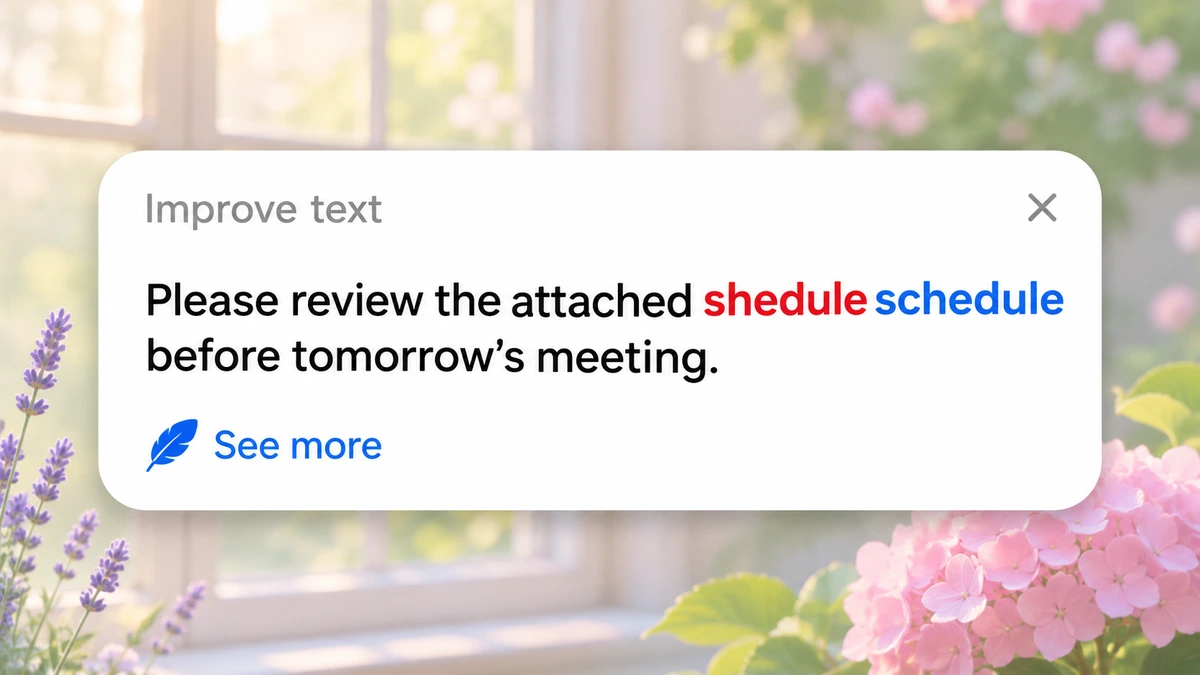
Try a short test draft with an unmistakable typo such as “shedule.” If no suggestion appears, start with the settings for your version of Outlook above.
Change the proofing language
If Outlook flags an English word in one draft but accepts it in another, check the proofing language. In Outlook on the web, open a draft, select Editor > Editor Settings, and choose a language in the Proofing language box. In new Outlook for Windows, open Editor > Editor Settings > Manage spellcheck languages, then add the language under Proofing languages. Microsoft notes that when you choose a proofing language while composing, it applies to that draft.
In classic Outlook for Windows, open the message in its own window. Select the text you want to check, then choose Review > Language > Set Proofing Language. Select the language you want, such as English (United States) or English (United Kingdom). For text you want Outlook to check, clear Do not check spelling or grammar. If a language lacks proofing tools, you may need to add them through Review > Language > Language Preferences. See Microsoft's instructions for changing proofing languages and troubleshooting language-specific checks.
If spell check stops working
If your test message has an obvious typo but Outlook doesn't mark it, work through these checks:
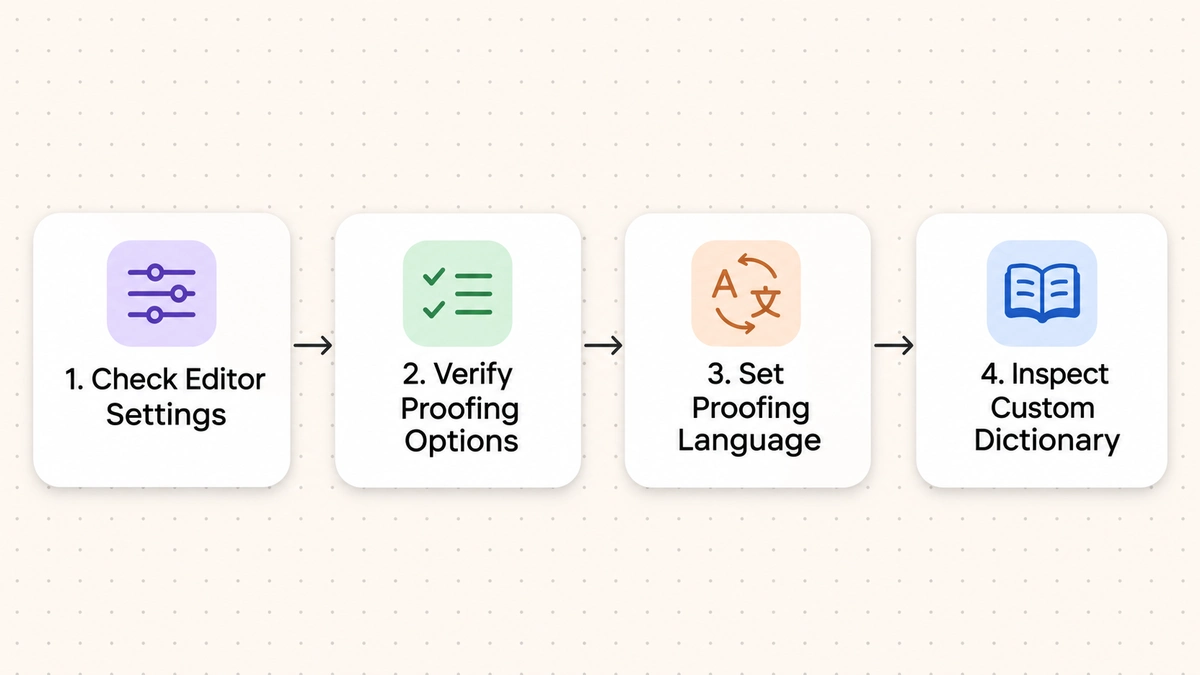
- Check Editor settings in the web or new app. Open a draft, find Editor Settings, and confirm spelling suggestions are enabled. If the settings look wrong, you can use Microsoft's Reset to default control there.
- Check classic Outlook's proofing options. Go to File > Options > Mail > Spelling and Autocorrect and confirm Check spelling as you type is selected. If you previously ignored the typo, use Recheck Document in the same area to reset ignored issues for the open item.
- Check the text's language. In classic Outlook, select the message text and inspect Review > Language > Set Proofing Language. Clear Do not check spelling or grammar and select the correct dictionary language. In the web and new apps, check the draft's proofing language under Editor Settings.
- Check for a dictionary exception. If Outlook catches other mistakes but always skips one misspelling, you may have added that word to a custom dictionary. Microsoft lists this as a cause of missing spelling marks in its proofing troubleshooting guide.
When you're writing in a browser, its own spell checker may also add red underlines. Check both sets of language settings if the browser and Outlook use different languages. Our Chrome spell-check guide explains Chrome's controls.
Read beyond the red underline
Spell check catches many typos, but a correctly spelled word can still be the wrong one. Compare “Please send the principle” with “Please send the principal.” Both words are in a dictionary. You need the surrounding sentence to decide which one belongs. Our guide to commonly confused words covers more cases like this.
After reviewing Editor's suggestions, read your message once for meaning and tone. Check that the subject is clear and that you're sending it to the right person. Read the request, too: does it sound respectful? These details matter as much as spelling. For a practical checklist, see how to write a professional email. For help as you draft in a browser, Wordfully's AI writing assistant and AI proofreader pages describe its tools. You can also compare the steps for spell check in Gmail.