
Claude Grammar Checker: Prompts and Examples
Try a grammar check without leaving the page. Fix grammar, spelling and punctuation, then use Claude-powered rewrites wherever you write.
Suggestions need a free browser extension.
Free plan available. Wordfully offers Claude and other models for inline rewrites in your browser.

To check grammar with Claude, paste your draft with instructions to fix spelling, punctuation, syntax, and sentence structure only. Claude is Anthropic's AI assistant, and it can handle language tasks well. But it generates text, so a vague request can leave you with a rewrite you didn't want. Set clear rules and mark where your draft begins and ends to keep the check focused on errors while preserving your meaning, tone, and facts.
Run a Claude grammar check in your browser
Copying a draft into a chat window gets tedious when you're writing throughout the day. An email in Gmail, a document in Google Docs, a Slack message, or a Notion page all require the same detour: copy the text, paste your prompt, wait, and bring the result back. You may also have to repair bold text, bulleted lists, and inline links that didn't survive the trip.
The Wordfully AI writing assistant extension puts grammar corrections and AI rewrites in the browser, where you're already writing. It works in Chrome, Edge, Brave, and Opera, so you can review and accept edits inside the web apps you use.
Choose Claude, GPT, Gemini, DeepSeek, Grok, Kimi, or GLM in Wordfully's model picker, or leave it on automatic selection. If you use claude for writing, you can apply Claude-powered rewrites inline with a single click. Wordfully also highlights individual grammar mistakes and shows suggested fixes in a tooltip. You choose which changes to keep without replacing an entire paragraph from a chat response. The ChatGPT grammar check guide covers a similar setup with GPT models.
Is Claude a grammar checker?
Claude is a general-purpose AI assistant that can identify and correct grammar errors. In a standard Claude chat, you submit text and review a response. An inline checker instead marks issues in the writing field and lets you accept individual fixes there. Claude also has a Google Workspace integration that can edit an open Google Doc, so the experience depends on where you use it.
Claude can suggest a full revised passage when you ask it to proofread. That gives you room to address sentence structure and awkward wording, but it also means you need to compare the result with your draft. A fluent revision is not automatically a faithful one.
That ability can be useful, but it also explains why a request like "fix this" may produce more changes than you expected. Claude is built to generate fluent text. It may polish a sentence that was already correct or swap a simple word for a fancier synonym. Tell it which kinds of errors to fix and which parts of your writing to leave alone.
How to check grammar with Claude step by step
Use these five steps to set up your grammar check:
- Open Claude in your web browser or desktop application.
- Tell Claude to act as a proofreader and say what it must not change before you paste the text. Anthropic's prompting best practices recommend clear, direct instructions and explicit output constraints.
- Put your draft inside XML tags. Anthropic's guide to using XML tags explains how tags such as
<draft>and</draft>help separate instructions from the text Claude should review. - Ask for the output you need, such as the corrected text followed by a list of changes.
- Compare the result with your original before putting the edits into your document.
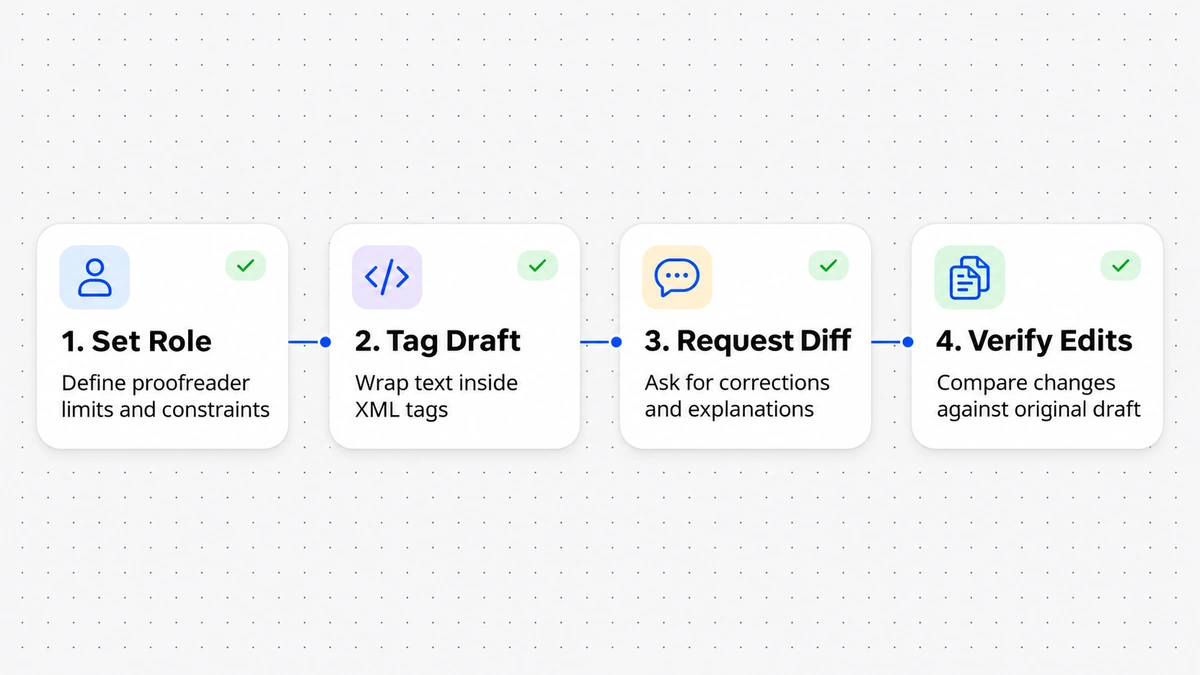
Two prompts for accurate Claude grammar checking
Anthropic's prompting guide explains how a role can focus Claude's response. The two prompts below use that approach: a short one for everyday checks and a stricter version for formal documents.
The quick grammar-check prompt
Use this for a paragraph or short message when you want errors fixed without changing your voice:
Fix all grammar, spelling, punctuation, and syntax errors in the text below. Preserve my original tone, phrasing, and sentence structure wherever possible. Do not add new information or substitute words that are already correct. Return only the corrected text inside
<corrected_text>tags.
<text>[Paste your draft here]</text>
Asking for only the corrected text keeps greetings and extra commentary out of the response. The instruction to preserve correct words also gives Claude a clear limit on what to edit.
The strict proofreading prompt
For business messages, academic papers, or work you're sending to a client, spell out what must stay exact. This prompt covers facts, dates, numbers, technical terms, and links:
You are a meticulous proofreader. Inspect the text inside the
<draft>tags for mechanical errors, including spelling mistakes, punctuation slips, subject-verb agreement problems, run-on sentences, and faulty word choices.Follow these strict rules:
- Preserve original meaning, tone, and intent exactly. Do not attempt to polish, modernize, or elevate the style.
- Keep all facts, numbers, dates, monetary values, and deadlines identical. Never round figures or convert measurements.
- Preserve all proper nouns, personal names, product names, acronyms, and hyperlinks without alteration.
- Keep existing formatting, paragraph breaks, and bulleted structures intact.
- If a sentence is grammatically sound, leave it completely untouched. Do not rewrite sentences merely to vary phrasing.
- Provide your output in two sections: first, the complete revised text inside
<corrected_text>tags; second, a bulleted list inside<revisions>tags detailing each specific correction and the grammatical reason behind it.
<draft>[Paste your text here]</draft>
The separate revisions list lets you see why Claude changed each word or sentence. If the explanation describes a style preference rather than an error, you can reject that edit.
Worked before and after examples
These five examples show the difference between fixing a specific error and rephrasing a sentence for clarity.
1. Grammar and spelling
Subject-verb agreement is easy to miss when other words sit between the subject and the verb. Irregular plurals can cause trouble too.
Before: Each of the department managers have finalized their report.
After: Each of the department managers has finalized their report.
"Each" is a singular indefinite pronoun, so it needs "has finalized." The plural "managers" sits closer to the verb, but it isn't the subject. This edit changes only the verb.
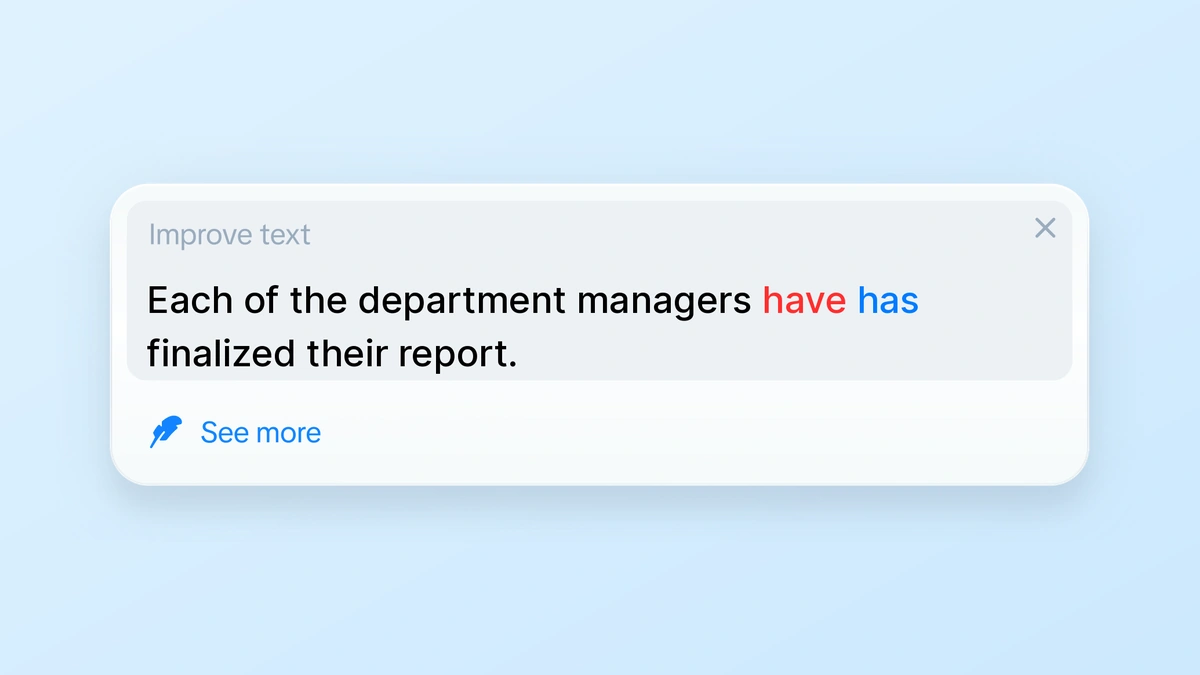
For a spelling check, try a separate sentence. Before: Please recieve the file. After: Please receive the file. The letters in "recieve" are transposed; the rest of the request stays intact.
2. Punctuation and comma splices
A comma splice joins two independent clauses with only a comma and no coordinating conjunction.
Before: The quarterly audit finished on Tuesday, we sent the summary to the executive team yesterday morning.
After: The quarterly audit finished on Tuesday. We sent the summary to the executive team yesterday morning.
Both parts can stand as complete sentences. Replacing the comma with a period fixes the splice without adding a conjunction or a transition that wasn't in the draft.
3. Awkward phrasing
Turning actions into nouns can make a straightforward explanation hard to follow. Here, the reader has to work through several wordy phrases to find out what happened.
Before: In consideration of the fact that the server experienced an unexpected shutdown incident, a reboot process was initiated by the engineering team.
After: Because the server shut down unexpectedly, the engineering team rebooted it.
"In consideration of the fact that," "shutdown incident," and "reboot process" make the original sound bureaucratic. The revision says what happened and who acted, while keeping the same details. This is a phrasing edit, so it goes beyond a grammar-only check. For more on making that kind of change, see how to rewrite a sentence without changing its meaning.
4. Sentence correction and dangling modifiers
A modifier needs to sit beside the person or thing it describes. Otherwise, the sentence can assign an action to the wrong subject.
Before: After reviewing the draft agreement carefully, several omissions were discovered by our legal counsel.
After: After reviewing the draft agreement carefully, our legal counsel discovered several omissions.
The original makes it sound as though the "omissions" reviewed the agreement. Putting "our legal counsel" immediately after the opening phrase makes clear who did the reviewing.
5. Proofreading a workplace email
In a workplace email, the names, dates, and requested actions matter as much as the grammar. The Purdue Online Writing Lab proofreading guide recommends watching for recurring error patterns, including comma splices and spelling mistakes. You should also compare every practical detail with the original.
Before: Hi Marcus, Thanks for send over the revised project timeline yesterday. Me and Sarah reviewed the delivery milestones for Phase 2, and we noticed that the launch date on page 4 are set for Friday, October 16 instead of Monday, October 19. Could you please updates that date in the tracker before our 2:00 PM planning call? Best regards, Elena
After: Hi Marcus, Thanks for sending over the revised project timeline yesterday. Sarah and I reviewed the delivery milestones for Phase 2, and we noticed that the launch date on page 4 is set for Friday, October 16 instead of Monday, October 19. Could you please update that date in the tracker before our 2:00 PM planning call? Best regards, Elena
"Send" becomes "sending" after "thanks for," and "updates" becomes "update" after "could you please." "Me and Sarah" becomes "Sarah and I" because the pronouns form the subject. The singular "launch date" needs "is set," so "are set" changes too. The names, page number, dates, and meeting time all stay exactly as written. See what is proofreading for more on checking a finished draft.
What you must review after Claude edits your text
A careful prompt doesn't make Claude infallible. It still predicts text and can make an unwanted change, so review its suggestions before sending or publishing.
Give these four areas a separate look:
- Check conditions and qualifiers. Words such as "if," "tentatively," "unless," and "subject to approval" explain when a statement applies. Losing one can turn an estimate into a guarantee.
- Compare numbers, dates, and times with the original. Look for rounded figures, changed digits, or digits in the wrong order. If you wrote "14 business days," keep that wording; "two weeks" doesn't preserve the distinction between business days and calendar time.
- Check names and technical terms. Client names, software tools, industry jargon, and product acronyms should keep their exact spelling and capitalization.
- Read for your own voice. If Claude added corporate wording such as "leverage," "streamline," or "synergize," keep your original phrasing. Correct grammar doesn't require you to sound stiff.
For a fuller review, use the five-step checklist to check an AI rewrite before you send it. It covers shifts in meaning that can be easy to miss when a sentence reads smoothly.

Why Claude over-corrects without prompt constraints
An open-ended request such as "proofread this" often produces three kinds of unwanted edits:
- Simple words become formal ones. "Help" becomes "facilitate," "start" becomes "commence," and "build" becomes "architect." These replacements may be grammatical, but they can make the message harder to read and less like something you'd say.
- Your sentence rhythm disappears. Claude may smooth out deliberate fragments or remove conversational asides. Those choices are part of a writer's voice; taking them out can leave the draft sounding like generic marketing copy.
- Short sentences get combined. Claude may add transitions such as "furthermore," "moreover," and "consequently" while trying to vary the prose. The result takes longer to read, and a point that deserved its own sentence can lose emphasis.
Frequently asked questions about Claude as a grammar checker
Can Claude proofread a document?
Yes. Anthropic's file upload guide says you can attach formats including PDF, DOCX, and TXT to a Claude chat. For a long manuscript, consider working section by section so you can inspect every change. Tell Claude to preserve formatting and citations along with names, dates, and figures. Check the original file after applying corrections, especially where layout matters.
Can Claude explain the grammatical rule behind a correction?
Yes. Ask why it suggested a particular edit. Claude can explain rules for semicolons, the subjunctive mood, restrictive clauses, and antecedent agreement in plain language. That gives you a way to understand the correction rather than simply accepting the replacement text.